For many organizations, the first version of a contract renewal process lives in Excel.
That makes sense.
A spreadsheet is quick to create, familiar to most users, and flexible enough to track:
- suppliers;
- contract values;
- expiration dates;
- notice periods;
- owners;
- renewal status.
The difficulty appears later, when the spreadsheet becomes responsible for more than simple visibility.
As contract volume grows, organizations often need:
- automated reminders;
- escalation;
- named ownership;
- audit history;
- renewal workflows;
- financial reporting;
- better control over auto-renewal deadlines.
At that point, moving from Excel to dedicated contract renewal software becomes a logical next step.
The good news is that migration does not need to be a large transformation project.
A practical approach is:
Start with the spreadsheet you already have, clean only what matters, import the active portfolio, verify the critical deadlines, assign owners, and activate renewal workflows progressively.
This guide explains how to do exactly that.
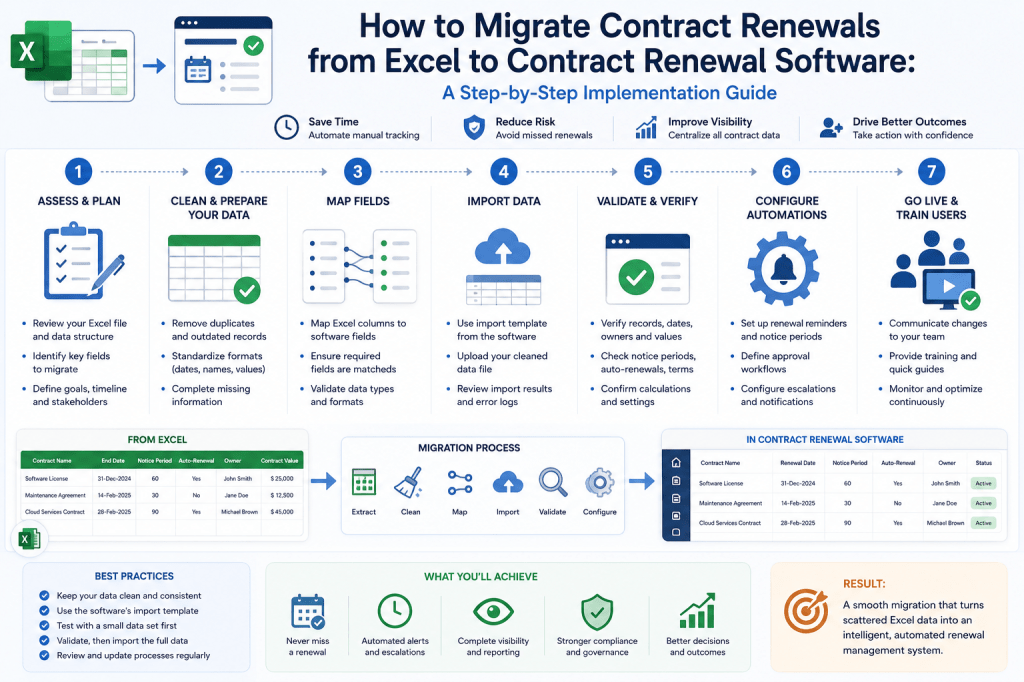
Why Migrate Contract Renewals from Excel?
The goal is not to eliminate Excel.
Excel remains excellent for:
- analysis;
- ad hoc reporting;
- data manipulation.
The goal is to stop relying on a spreadsheet as the operational system responsible for critical renewal actions.
A dedicated Contract Renewal Tracker can turn the information already stored in Excel into:
Renewal Deadlines
↓
Owner Tasks
↓
Reminders
↓
Escalations
↓
Decisions
That is the real value of migration.
Already Tracking Contract Renewals in Excel?
You do not need to rebuild everything from scratch.
Contract Renewal Tracker is designed to let organizations start with their existing contract register, map the fields, identify missing renewal data, assign owners, and convert spreadsheet dates into controlled renewal workflows.
Bring your existing renewal spreadsheet into Contract Renewal Tracker →
Step 1: Identify the Source Spreadsheet
Before importing anything, determine:
Which spreadsheet is actually authoritative?
This is often harder than it sounds.
You may find:
Contracts.xlsx
Contracts_Final.xlsx
Renewals_2026.xlsx
Renewals_FINAL_v3.xlsx
Different departments may also maintain their own files.
Before migration, establish:
Source File
or:
Source Files
that will feed the initial import.
Do Not Assume One File Is Complete
Procurement may track:
commercial terms.
Legal may track:
documents.
IT may track:
SaaS renewals.
Finance may track:
supplier spend.
The initial migration may require combining several sources.
But keep the first release manageable.
Step 2: Preserve the Original Files
Before cleaning or modifying anything:
create a read-only copy of the source spreadsheets.
For example:
Renewals_PreMigration_2026-08-16.xlsx
This gives you:
- backup;
- migration evidence;
- a reference if questions arise later.
Never destructively edit the only copy.
Step 3: Define the Minimum Migration Scope
Do not automatically migrate every historical record ever created.
Start with:
Active Contracts
and:
Contracts Approaching Renewal
These create immediate value.
Historical data can be added later if useful.
Example Scope
Suppose the spreadsheet contains:
3,200 records.
Of those:
Active
1,100.
Expired More Than 3 Years Ago
1,400.
Terminated
Unknown
A first migration might focus on:
the 1,100 active contracts
plus:
selected recent history.
That reduces complexity dramatically.
Step 4: Prioritize High-Risk Contracts
If data cleanup is required, do not clean every contract equally.
Prioritize:
- contracts renewing soon;
- auto-renewing contracts;
- high-value contracts;
- strategic suppliers.
This is risk-based migration.
Example Priority Rule
IF notice_deadline <= 90_daysOR annual_value >= 250000OR auto_renewal = TRUETHEN migration_priority = HIGH
This focuses effort where mistakes would matter most.
Step 5: Define the Target Data Model
Before mapping spreadsheet columns, decide what the new system needs.
For a basic Contract Renewal Tracker migration, I would start with:
Contract Name
Supplier
Business Owner
Department
Start Date
End Date
Notice Period
Auto-Renewal
Annual Value
Currency
Status
You can add more fields later.
Do Not Start with 100 Fields
A common implementation mistake is trying to migrate every historical attribute.
That can delay go-live substantially.
Ask:
Does this field help manage the renewal?
If not:
it may not belong in the first migration wave.
Step 6: Separate Required and Optional Fields
For example:
Required
- contract name;
- supplier;
- end date;
- owner.
Renewal-Critical
- notice period;
- auto-renewal.
Financial
- annual value;
- currency.
Optional
- notes;
- category.
This makes validation easier.
Step 7: Review Existing Spreadsheet Columns
Typical source columns may include:
Vendor
Contract
Expiry
Renewal
Owner
Cost
Do not assume the meaning from the heading alone.
“Renewal Date” Is Particularly Dangerous
A spreadsheet column named:
Renewal Date
might mean:
- contract end date;
- next billing date;
- internal review date;
- auto-renewal effective date.
Before mapping it:
verify what the organization has actually been storing.
This can prevent major deadline errors.
Step 8: Create a Field Mapping Table
For example:
| Excel Column | Contract Renewal Tracker Field |
|---|---|
| Vendor | Supplier |
| Agreement | Contract Name |
| Expiry | End Date |
| Cancel Notice | Notice Period |
| Owner Email | Business Owner |
| Annual Cost | Annual Value |
This provides a migration blueprint.
Keep Unmapped Columns
If you are uncertain about a source column:
do not delete it.
Import it temporarily as:
Legacy Field
or retain it in the source spreadsheet.
You can decide later.
Step 9: Standardize Supplier Names
Supplier data often contains inconsistent naming.
For example:
Microsoft.
Microsoft Corp.
Microsoft Ireland Operations Ltd.
MSFT.
These records may refer to the same supplier group.
Do Not Merge Legal Entities Blindly
A better structure is:
Supplier Group: Microsoft
with:
Legal Counterparty: Microsoft Ireland Operations Ltd
This provides:
portfolio aggregation
without losing:
contractual accuracy.
Supplier Normalization Table
For example:
| Original | Supplier Group | Legal Entity |
|---|---|---|
| MSFT Ireland | Microsoft | Microsoft Ireland Operations Ltd |
| Microsoft UK | Microsoft | Microsoft Ltd |
| Microsoft Corp | Microsoft | Microsoft Corporation |
This makes future supplier-level analysis much stronger.
Step 10: Standardize Date Formats
Spreadsheets often contain mixed formats:
31-12-2026
12/31/26
2026-12-31
Normalize them before or during import.
A reliable internal standard is:
YYYY-MM-DD
The interface can display dates according to local preference afterward.
Step 11: Identify Invalid Dates
Flag records where:
- end date occurs before start date;
- date cannot be parsed;
- year appears implausible.
For example:
Start:
2027-01-01.
End:
2025-12-31.
This requires review.
Step 12: Separate End Date from Notice Deadline
This is one of the most important migration steps.
Many spreadsheets track only:
Expiration Date
But the operational date may be:
Notice Deadline
These are not the same.
Example
Contract End:
December 31.
Notice Period:
90 days.
Operational deadline:
approximately:
early October.
The migration should capture both.
Step 13: Validate Notice Periods
Notice periods may be stored as:
90
90 days
3 months
Quarter
Normalize these into structured values.
For example:
90 days
or:
structured contract rule.
Do Not Guess Missing Notice Periods
If the spreadsheet does not contain a notice period:
mark:
Unknown / Verification Required
Do not automatically assume:
30 days
or:
90 days.
Incorrect certainty is more dangerous than visible missing data.
Step 14: Verify High-Risk Notice Periods Against the Contract
For high-value or near-term renewals:
open the contract document.
Verify:
- notice period;
- automatic renewal;
- delivery requirements.
This is worth the effort.
Verification Priority
For example:
Tier 1
Notice deadline within 60 days.
Tier 2
Annual value >€500K.
Tier 3
Other active contracts.
This creates a practical verification sequence.
Step 15: Identify Automatic Renewals
If your spreadsheet already contains:
Auto-Renew:
Yes / No.
great.
If not:
review high-priority contracts first.
Automatic renewal is one of the most important risk indicators in the new system.
Step 16: Normalize Boolean Values
Source spreadsheets may use:
Y
Yes
TRUE
Auto
1
Normalize these to:
Yes / No / Unknown
This avoids confusing system behavior.
Step 17: Clean Contract Values
Contract amounts may include:
€25.000
25000 EUR
$40,000
40k
These need structured normalization.
Store separately:
Amount
and:
Currency
Example
Source:
€250k
Target:
Annual Value:
Currency:
EUR.
This makes reporting much more reliable.
Step 18: Distinguish Annual Value from Total Contract Value
A three-year contract might show:
€300K.
Does that mean:
€300K per year
or:
€300K total?
Do not assume.
The target system may need:
Annual Contract Value
and:
Total Contract Value
separately.
Step 19: Normalize Contract Status
Source values might include:
Current
Live
Active
Signed
Expired?
Create a controlled status set such as:
Active
Expired
Terminated
Superseded
Unknown
This improves consistency.
Step 20: Remove Obvious Duplicate Rows
Duplicates commonly appear because:
- several teams exported the same contract;
- records were copied between worksheets.
Potential duplicates can be detected using:
- supplier;
- contract number;
- dates;
- value.
Do Not Auto-Delete Ambiguous Duplicates
Two contracts may look similar but be:
different order forms.
Use:
Potential Duplicate
status.
Then review.
Duplicate Example
Supplier:
ExampleCloud.
Value:
€120K.
End Date:
December 31.
Contract Number:
Another row has identical values.
Likely duplicate.
But confirm before deleting.
Step 21: Clean Owner Data
Owner fields may contain:
- employee name;
- email;
- department;
- initials.
Normalize to:
a named user identity.
Example
Source:
John / IT
Target:
Business Owner:
John Smith.
Department:
IT.
This enables actual task assignment.
Step 22: Detect Missing Owners
Do not leave them invisible.
Use:
Owner Missing
and create:
a remediation queue.
This is far better than silently importing blank fields.
Step 23: Detect Former Employees
If identity information is available:
compare imported owner emails with:
active users.
Example:
Owner:
Identity:
Inactive.
Flag:
Owner Reassignment Required
This can uncover substantial hidden risk.
Step 24: Map Departments
If contracts belong to departments:
standardize department names.
For example:
IT
Information Technology
Technology
could potentially map to:
Information Technology
This improves reporting.
Step 25: Map Legal Entities
Global organizations may need:
legal contracting entities.
For example:
Netherlands BV.
Germany GmbH.
US Inc.
This becomes important for:
security;
reporting;
financial allocation.
Step 26: Create the Import File
Once cleaned:
create a dedicated migration file.
For example:
ContractRenewalTracker_Import_2026-09.csv
Do not import directly from a heavily formatted operational workbook if avoidable.
A clean import file reduces errors.
Step 27: Keep a Migration Identifier
Add:
Legacy Record ID
For example:
EXCEL-000234
This allows a migrated record to be traced back to:
its original spreadsheet row.
This is very useful during validation.
Step 28: Run a Small Test Import First
Do not import:
2,000 contracts
on the first attempt.
Start with:
10–20.
Choose representative examples.
Verify:
- fields;
- dates;
- currency;
- owners.
Then proceed.
Test Import Sample
Include:
- simple contract;
- auto-renewing;
- high-value;
- missing owner;
- missing notice period.
This tests multiple conditions.
Step 29: Review Import Errors
A good migration process should produce errors such as:
End Date invalid.
Owner not found.
Currency unsupported.
Do not ignore them.
Treat them as:
data-quality tasks.
Step 30: Bulk Import the Main Portfolio
Once test mapping is validated:
import the prioritized active contract set.
Then immediately compare:
source count
with:
imported count.
Reconciliation Example
Expected:
1,100 active contracts.
Imported:
1,082.
Rejected:
The total reconciles.
Now review:
18 errors.
Never accept unexplained differences.
Step 31: Validate Imported Totals
Check:
- number of contracts;
- total annual value;
- contracts by supplier;
- contracts by department.
These totals should broadly reconcile with source data.
Large differences may indicate mapping errors.
Step 32: Validate Random Samples
Select:
20–50 contracts
randomly.
Compare:
Excel
against:
Contract Renewal Tracker.
Verify:
- supplier;
- dates;
- owner;
- value.
This catches subtle import problems.
Step 33: Validate the Highest-Risk Contracts Individually
Random sampling is not enough for:
strategic renewals.
Individually verify:
critical contracts.
This should include:
notice deadline.
Step 34: Calculate Data Completeness
After import:
create a data-quality dashboard.
For example:
Active Contracts
1,100.
End Date Complete
98%.
Notice Period Complete
82%.
Named Owner
94%.
Annual Value
88%.
Now you know where cleanup is required.
Do Not Delay Go-Live Until Everything Is 100%
Suppose:
95% of material contracts
are ready.
That may be enough to start.
The remaining:
5%
can remain in:
remediation.
This creates faster value.
Step 35: Create a Data Remediation Queue
Examples:
Missing Notice Period
Missing Owner
Potential Duplicate
Invalid Value
Assign these tasks systematically.
Step 36: Turn on Reminder Policies
Once critical dates are trustworthy:
activate reminders.
For example:
120 days.
Again:
base them on:
the notice deadline.
Step 37: Start with Simple Reminder Policies
Do not configure:
20 different reminder schemes
on day one.
Start with:
Standard
and:
Strategic.
Refine later.
Example
Standard Contracts
90 / 60 / 30 days.
Strategic
365 / 180 / 120 / 90 / 60 / 30.
This is enough initially.
Step 38: Activate Owner Tasks
Now imported records become:
active operational objects.
The owner receives:
- renewal review;
- decision request.
This is the moment you move beyond Excel.
Step 39: Configure Escalation
For example:
Owner task due.
No response after 5 days.
↓
Manager.
Another 5 days.
↓
Procurement.
This creates the closed-loop control the spreadsheet could not easily provide.
Step 40: Define Renewal Decision Options
Use:
Renew
Renegotiate
Reduce
Replace
Extend
Terminate
This improves the quality of information captured from day one.
Step 41: Configure a Standard Workflow
For example:
Business Review
↓
Decision
↓
Procurement
↓
Approval
↓
Execution
Do not overcomplicate the first rollout.
Step 42: Add a Termination Workflow
At minimum:
termination should require:
- notice verification;
- delivery evidence.
This prevents:
“Cancelled”
from becoming only a spreadsheet-style status.
Step 43: Create the First Operational Dashboard
A useful migration dashboard should show:
Notice Deadlines <90 Days
Missing Owners
Missing Notice Periods
Overdue Actions
Auto-Renewal Exposure
This immediately demonstrates why the new system is more useful.
Step 44: Compare the New Dashboard with Excel
Ask:
Could we answer these questions this quickly before?
For example:
Which €250K+ auto-renewing contracts have no confirmed decision and enter notice windows within 60 days?
If this previously required manual filtering:
the value is already becoming visible.
Step 45: Run Excel in Parallel Briefly
For an initial rollout:
keep the old spreadsheet:
read-only
for comparison.
Do not keep both as active masters.
Why Dual Maintenance Is Dangerous
If users update:
Excel
and:
Contract Renewal Tracker,
records will diverge.
You will recreate the problem you were trying to solve.
Parallel operation should be:
temporary
and:
controlled.
Step 46: Define a System-of-Record Date
For example:
Effective October 15, Contract Renewal Tracker is the authoritative source for renewal status, deadlines, and ownership.
This should be communicated clearly.
Step 47: Archive the Operational Spreadsheet
After cutover:
move the old spreadsheet to:
read-only archive.
Preserve it for:
- historical reference.
Do not delete it immediately.
Step 48: Train Contract Administrators
Administrators need to understand:
- import;
- correction;
- owner reassignment;
- workflow monitoring.
They are the primary operational users.
Step 49: Train Business Owners Differently
Business owners should not receive administrator training.
They only need to know:
- where to see their contracts;
- how to complete a renewal review;
- how to record the decision.
Keep it simple.
Step 50: Measure Migration Success
A migration is not successful because:
the rows moved.
It is successful if:
renewal control improves.
Track KPIs.
Migration KPI 1: Imported Contract Coverage
Example:
Active contracts successfully migrated:
98.4%.
Migration KPI 2: Verified Deadline Coverage
Before:
65%.
After:
94%.
This is a much stronger success measure.
Migration KPI 3: Owner Coverage
Before:
77%.
After:
98%.
This shows governance improvement.
Migration KPI 4: Auto-Renewal Visibility
Before:
unknown.
After:
€6.4M identified.
This creates immediate financial transparency.
Migration KPI 5: High-Risk Renewals Identified
For example:
31 contracts requiring action.
This is an early product-value signal.
Migration KPI 6: Manual Reminder Reduction
Before:
100% manual.
After:
90% automated.
This demonstrates administrative benefit.
Migration KPI 7: Reporting Effort
Before:
5 hours/month.
After:
30 minutes.
This makes productivity improvement visible.
Migration KPI 8: User Adoption
Business-owner tasks completed:
92%.
This indicates workflow adoption.
Migration KPI 9: Missed Deadlines
Target:
zero material missed deadlines.
This is the ultimate control outcome.
Migration KPI 10: First Financial Opportunity
For example:
unused SaaS licenses:
€18K.
The migration may immediately surface opportunities.
This strengthens ROI.
Common Migration Mistake 1: Migrating Everything
Importing:
20 years of inactive contracts
before launching
can waste enormous effort.
Start with:
active and relevant.
Common Migration Mistake 2: Cleaning Everything Manually Before Import
The system should help expose:
data problems.
Do not delay implementation indefinitely chasing perfect data.
Common Migration Mistake 3: Treating Expiration Date as Renewal Deadline
This can recreate the same risk in the new platform.
Notice periods must be modeled explicitly.
Common Migration Mistake 4: Guessing Missing Data
If the notice period is unknown:
say:
unknown.
Do not invent certainty.
Common Migration Mistake 5: Importing Department Names as Owners
An owner should be:
a person
or:
controlled queue.
Finance
is not necessarily accountability.
Common Migration Mistake 6: Ignoring Former Employees
This is one of the easiest ways to migrate stale ownership into the new system.
Check user activity.
Common Migration Mistake 7: Keeping Excel as the Real System
If users continue to treat the spreadsheet as authoritative:
the migration has not really happened.
Define the cutover.
Common Migration Mistake 8: Recreating the Spreadsheet Exactly
A new system should not simply reproduce:
every column and process
because:
“that’s how Excel worked.”
Use the migration as an opportunity to simplify.
Common Migration Mistake 9: Too Many Custom Fields
If nobody uses:
37 of 50 fields,
do not migrate them automatically.
Keep the data model focused.
Common Migration Mistake 10: Too Many Workflows at Launch
Start with:
one or two.
Complexity can be added later.
Common Migration Mistake 11: Ignoring Data Provenance
For high-risk contract terms, preserve:
where the value came from.
For example:
Notice Period:
120 days.
Source:
Contract §9.4.
This builds trust.
Common Migration Mistake 12: No Reconciliation
Always compare:
source totals
to:
import totals.
Otherwise records may disappear unnoticed.
Excel Migration Readiness Checklist
Before importing:
- Source spreadsheets identified.
- Original files preserved.
- Active contracts identified.
- Target fields defined.
- Supplier names reviewed.
- Dates standardized.
- Statuses normalized.
- Owner values reviewed.
- Test import completed.
- Import reconciliation planned.
This could be turned into a downloadable checklist.
Minimum Excel Template for Migration
If you are creating a clean source file, I would use:
| Field | Required? |
|---|---|
| Contract Name | Yes |
| Supplier | Yes |
| Owner Email | Recommended |
| Start Date | Optional |
| End Date | Yes |
| Notice Period Days | Strongly Recommended |
| Auto-Renewal | Recommended |
| Annual Value | Recommended |
| Currency | Recommended |
| Department | Optional |
| Contract Number | Optional |
| Notes | Optional |
This is enough for a practical first migration.
Recommended Spreadsheet Data Types
Contract Name
Text.
End Date
Date.
Notice Period
Integer days where appropriate.
Auto-Renewal
Yes / No / Unknown.
Annual Value
Numeric.
Currency
ISO code:
EUR.
USD.
GBP.
This simplifies mapping.
Do Not Put Multiple Values in One Cell
Bad:
John Smith / IT / EMEA
Better:
Owner
John Smith.
Department
IT.
Region
EMEA.
Structured fields enable automation.
Avoid Free-Text Dates
Bad:
End of Q4
Better:
2026-12-31
Structured dates matter.
Use IDs Where Available
If contract number exists:
keep it.
This can help:
- de-duplicate;
- reconcile.
Add a Migration Status Column
During cleanup:
use:
Ready
Needs Review
Do Not Import
This makes the process easier to manage.
Example
| Contract | Migration Status |
|---|---|
| Microsoft EA | Ready |
| Office Lease | Needs Notice Review |
| Old Software | Do Not Import |
This keeps decisions explicit.
Migration Team Roles
For a small company:
one person may handle everything.
For larger organizations:
define roles.
Migration Lead
Owns:
overall migration.
Contract Operations
Reviews:
data.
Legal
Verifies:
high-risk notice terms.
Procurement
Validates:
supplier and commercial information.
Finance
Validates:
material values.
IT
Supports:
identity and integration.
This keeps responsibilities clear.
How Much Data Should Be Perfect Before Cutover?
A practical approach is:
100% of critical contracts
and:
high coverage overall.
For example:
Critical contracts:
100% verified.
All active contracts:
90%+ complete.
Remaining gaps:
visible and assigned.
This is much more sensible than waiting for universal perfection.
Progressive Data Quality
The system can improve over time.
Month 1:
90%.
Month 3:
96%.
Month 6:
99%.
This is a realistic operating model.
Migration Can Create Immediate Insights
One of the most useful effects of centralization is discovering problems that were previously hidden.
For example:
- 40 contracts have no owner;
- €2M auto-renews in the next quarter;
- one supplier has seven separate agreements.
These discoveries can create immediate value.
Example Migration Result
600 contracts imported.
System identifies:
Missing Notice Period
Missing Owner
Renewal Deadline <90 Days
Auto-Renewing Spend
€3.6M.
Potential Duplicate Supplier Contracts
The migration itself becomes:
a renewal health assessment.
Turn Migration into a Sales Experience
This has direct implications for Contract Renewal Tracker.
Instead of asking a prospect to:
manually create sample contracts,
let them:
upload their Excel file.
Then show:
Renewals Found
Critical Deadlines
Missing Owners
This creates immediate relevance.
The Ideal Contract Renewal Tracker Import Experience
The flow should eventually be:
Upload Excel / CSV
↓
Map Columns
↓
Validate
↓
Resolve Errors
↓
Import
↓
See Renewal Dashboard
This can become one of the most important product experiences.
Import Mapping Should Be Intelligent
If source contains:
Expiry Date
the system can suggest:
Contract End Date
If:
Vendor
suggest:
Supplier
The user confirms.
This reduces onboarding friction.
AI-Assisted Data Mapping
AI can help:
- identify likely fields;
- normalize values;
- spot anomalies.
But the user should still confirm:
critical mappings.
This is especially important for dates.
AI-Assisted Supplier Normalization
For example:
MSFT
Microsoft Corp
could be suggested as:
Supplier Group:
Microsoft.
Again:
human confirmation
where legal entity accuracy matters.
AI-Assisted Contract Extraction
If notice periods are missing:
the user could upload:
contract documents.
AI extracts:
- end date;
- notice;
- auto-renewal.
This can accelerate migration substantially.
Verification State Is Essential
For example:
Notice Period: 90 days
Source: PDF §11.2
Status: AI Extracted — Unverified
This is safer and more useful.
Contract Renewal Tracker Beta Migration Strategy
For the first SaaS beta, keep spreadsheet migration deliberately simple.
The beta does not need:
every advanced migration capability.
A practical first version needs to reliably support:
- CSV/Excel import;
- basic mapping;
- date validation;
- duplicate/error reporting.
The goal is:
reduce time to first contract portfolio.
Beta Activation Through Import
For spreadsheet users:
import may be the fastest activation path.
Instead of:
creating contracts individually,
they can go from:
Excel
to:
portfolio dashboard.
This could substantially improve beta adoption.
Beta Metric: Import Completion Rate
Measure:
Percentage of users who begin an import and successfully finish it.
If low:
mapping may be too difficult.
Beta Metric: Time to Import
Measure:
from:
upload
to:
contracts visible.
This is an important onboarding metric.
Beta Metric: Import Error Rate
Track:
- date errors;
- required fields;
- duplicate issues.
Repeated errors reveal:
where the onboarding UX needs improvement.
Beta Metric: First Dashboard View
After import:
do users understand:
what they are seeing?
The first dashboard should probably emphasize:
Upcoming Renewals
and:
Missing Critical Data
not advanced analytics.
Use Imported Data to Create the Aha Moment
For example:
12 contracts have notice deadlines within the next 90 days.
This is far more powerful than:
Import successful.
Show business value immediately.
Use Missing Data Constructively
Instead of:
Error: 37 records incomplete.
Say:
37 contracts need a notice period before reliable renewal deadlines can be calculated.
This connects data quality to business consequence.
Migration Should Feel Like Progress, Not Punishment
A poorly designed migration experience tells customers:
everything is wrong.
A better product tells them:
what is already useful
and:
what needs improvement next.
For example:
480 contracts are ready for monitoring. 32 need owner assignment. 18 require notice verification.
This is much more motivating.
Free Migration Assessment
A strong future lead-generation offer could be:
Upload your contract renewal spreadsheet for a free migration-readiness assessment.
Output:
- number of records;
- data completeness;
- deadline readiness;
- owner coverage.
Then offer:
Contract Renewal Tracker trial.
This is extremely aligned with the product.
Spreadsheet Health Score
For example:
Renewal Migration Readiness: 74/100
Why:
- 98% have end dates;
- 62% have notice periods;
- 80% have named owners.
This creates a useful prospect diagnostic.
Do Not Overcomplicate the Score
The real value is:
the underlying gaps.
Show those clearly.
Downloadable Migration Template
This article is ideally paired with a free:
Contract Renewal Tracker Excel Migration Template
It could contain:
- correct fields;
- example values;
- date formats;
- instructions.
This would make it easier for prospects to prepare their data before launch.
Strong CTA for This Article
Download the Contract Renewal Tracker Excel Migration Template
Prepare your existing renewal register for import using standardized fields for suppliers, contract dates, notice periods, owners, auto-renewal status, and annual value.
Download the Free Migration Template →
Beta Launch CTA
Contract Renewal Tracker Beta Launch — September 21, 2026
Already managing contract renewals in Excel? The first Contract Renewal Tracker SaaS beta is designed to help you bring those existing renewal records into one dedicated system and turn contract dates into visible upcoming actions. Start with the data you already have rather than rebuilding your contract portfolio manually.
Notify Me When the Beta Is Available →
One launch notification only — no ongoing newsletter.
Ready to Move Your Contract Renewals Out of Excel?
A spreadsheet migration does not need to become a major IT project.
The practical path is:
Preserve the Existing Data
↓
Prioritize Active Contracts
↓
Map Core Fields
↓
Clean Critical Dates
↓
Import
↓
Validate
↓
Assign Owners
↓
Activate Reminders
↓
Cut Over
The most important rule is:
Do not wait for every historical record to become perfect before improving control over the contracts that matter now.
Contract Renewal Tracker is designed to let organizations start with their existing renewal spreadsheet and progressively improve:
- deadline quality;
- ownership;
- workflow;
- reporting.
Start Your Contract Renewal Tracker Subscription →
Final Thoughts
The most successful spreadsheet migrations are not really about moving rows.
They are about changing the operating model.
Before migration:
Excel row
may contain:
supplier + end date.
After migration:
that same record becomes:
a monitored contractual commitment with a deadline, owner, and required action.
That is the real transformation.
The migration path should therefore prioritize:
Correctness
before:
Completeness
and:
Risk
before:
Historical perfection.
For Contract Renewal Tracker, this migration experience is likely to be one of the most important parts of the product.
Many early prospects will already have the data.
They do not need help creating another spreadsheet.
They need a straightforward way to turn the spreadsheet they already trust into a renewal process they can control.
Next Article in the Contract Renewal Tracker Series
Article 85 — “Contract Renewal Excel Template: Free Spreadsheet Structure for Tracking Renewal Dates, Notice Periods, Auto-Renewals, Owners, and Contract Value”
The next article should be extremely useful for SEO and lead generation because it targets people who are not yet ready to buy software but are actively trying to solve the renewal problem.
It can provide the exact spreadsheet structure, formulas for notice deadlines, conditional formatting rules, status fields, recommended columns, sample rows, limitations of Excel, and a natural migration path into Contract Renewal Tracker.
This creates a strong acquisition funnel:
Google search for free renewal template → useful Excel template → growing portfolio → Contract Renewal Tracker beta/trial.

